🍎 Mac 系统配置记录
最近重装了我的 Mac mini,我把重装后一套固定会做的事情整理在这里,方便下次直接照着配。
这篇更像一份装机后的操作清单,不是从零开始的完整教程。建议按模块执行,不要整篇直接复制。
- 适用场景:给我自己留档,也适合有开发环境需求的 macOS 用户参考
- 执行方式:先做系统设置和开发环境,再按需要补软件和可选增强
- 高风险项:文中包含
sudo、关闭 SIP、关闭下载隔离、放开安装来源等操作,先看说明再执行 - 长文导航:如果想快速跳转,推荐直接用 SideTOC↗
⚡ 快速开始
如果是刚重装完,通常我会先做这几件事:
- 调整系统偏好、Finder、Dock 和 Trackpad
- 安装 Xcode Command Line Tools、Homebrew、Git 和 shell 环境
- 装
fnm、pnpm、miniconda、rustup - 安装输入法、字体和常用软件
- 最后再决定要不要改默认应用、AirDrop 自动化和高风险设置
⚙️ 系统设置
这一节主要处理系统偏好、Finder、Dock 和电源相关的行为。
通用偏好
用途 调整键盘、保存面板、滚动条和文档默认行为。
命令
# 启用全键盘控制
defaults write -g AppleKeyboardUIMode -int 3

# 开启按住重复输入
defaults write -g ApplePressAndHoldEnabled -bool false
defaults write -g InitialKeyRepeat -int 15
defaults write -g KeyRepeat -int 1

# 关闭智能替换功能
defaults write -g NSAutomaticDashSubstitutionEnabled -bool false
defaults write -g NSAutomaticPeriodSubstitutionEnabled -bool false
defaults write -g NSAutomaticQuoteSubstitutionEnabled -bool false

# 禁用自动大写
defaults write -g NSAutomaticCapitalizationEnabled -bool false

# 禁用自动拼写纠正
defaults write NSGlobalDomain NSAutomaticSpellingCorrectionEnabled -bool false

# 使用展开的保存面板
defaults write -g NSNavPanelExpandedStateForSaveMode -bool true
defaults write -g NSNavPanelExpandedStateForSaveMode2 -bool true

# 提高窗口缩放速度
defaults write -g NSWindowResizeTime -float 0.001

# 默认保存到本地而非 iCloud
defaults write -g NSDocumentSaveNewDocumentsToCloud -bool true

# 滚动条点击跳转到点击位置
defaults write -g AppleScrollerPagingBehavior -bool true

# 偏好使用标签页打开文档
defaults write -g AppleWindowTabbingMode -string always
Dock
用途 清理 Dock,减少干扰,保留自动隐藏和左侧停靠的布局。
命令
# 设置图标位置
defaults write com.apple.dock orientation -string left

# 启用自动隐藏并透明显示隐藏的应用图标
defaults write com.apple.dock autohide -bool true
defaults write com.apple.dock showhidden -bool true

# 不显示最近使用的应用
defaults write com.apple.dock show-recents -bool false

# 清除固定应用
defaults write com.apple.dock persistent-apps -array ""
Finder
用途 让 Finder 更适合开发和文件管理。
命令
# 允许 ⌘Q 退出 Finder
defaults write com.apple.finder QuitMenuItem -bool true

# 关闭修改扩展名时的警告
defaults write com.apple.finder FXEnableExtensionChangeWarning -bool false

# 显示所有文件与扩展名
defaults write com.apple.finder AppleShowAllExtensions -bool true
defaults write com.apple.finder AppleShowAllFiles -bool true

# 显示路径栏,使用列表视图
defaults write com.apple.finder ShowPathbar -bool true
defaults write com.apple.finder FXPreferredViewStyle -string "Nlsv"

# 在标题栏显示完整路径
defaults write com.apple.finder _FXShowPosixPathInTitle -bool true

# 默认在当前文件夹中搜索
defaults write com.apple.finder FXDefaultSearchScope -string SCcf

# 桌面保持干净
defaults write com.apple.finder ShowHardDrivesOnDesktop -bool false
defaults write com.apple.finder ShowRemovableMediaOnDesktop -bool false
defaults write com.apple.finder ShowExternalHardDrivesOnDesktop -bool false
defaults write com.apple.finder ShowMountedServersOnDesktop -bool false

# 文件夹优先显示
defaults write com.apple.finder _FXSortFoldersFirst -bool true

# 新建窗口默认打开 HOME 目录
defaults write com.apple.finder NewWindowTarget -string PfHm
defaults write com.apple.finder NewWindowTargetPath -string "file://$HOME/"

# Quick Look 支持文字选择
defaults write com.apple.finder QLEnableTextSelection -bool true

# 信息面板中显示元数据但不预览内容
defaults write com.apple.finder FXInfoPanesExpanded -dict MetaData -bool true Preview -bool false
生效方式
killall Finder
Trackpad
用途 打开轻点点击和三指拖移。
命令
# 启用轻点点击
defaults write com.apple.AppleMultitouchTrackpad Clicking -bool true
defaults write com.apple.driver.AppleBluetoothMultitouch.trackpad Clicking -bool true

# 启用三指拖移
defaults write com.apple.AppleMultitouchTrackpad TrackpadThreeFingerDrag -bool true
defaults write com.apple.driver.AppleBluetoothMultitouch.trackpad TrackpadThreeFingerDrag -bool true
活动监视器
用途 默认按 CPU 占用排序,方便排查进程。
命令
defaults write com.apple.ActivityMonitor SortColumn -string CPUUsage
defaults write com.apple.ActivityMonitor SortDirection -int 0
Safari
用途 加强隐私设置,并打开开发者相关菜单。
命令
# 提升隐私保护
defaults write com.apple.Safari UniversalSearchEnabled -bool false
defaults write com.apple.Safari SuppressSearchSuggestions -bool true
defaults write com.apple.Safari SendDoNotTrackHTTPHeader -bool true

# 禁止自动打开下载内容
defaults write com.apple.Safari AutoOpenSafeDownloads -bool false

# 开发者菜单与调试功能
defaults write com.apple.Safari IncludeDevelopMenu -bool true
defaults write com.apple.Safari IncludeInternalDebugMenu -bool true
defaults write com.apple.Safari WebKitDeveloperExtras -bool true
defaults write com.apple.Safari WebKitDeveloperExtrasEnabledPreferenceKey -bool true
defaults write com.apple.Safari "com.apple.Safari.ContentPageGroupIdentifier.WebKit2DeveloperExtrasEnabled" -bool true
无障碍
用途 调整光标大小。
命令
defaults write com.apple.universalaccess mouseDriverCursorSize -float 1.5
截图
用途 统一截图命名,去掉时间后缀。
命令
defaults write com.apple.screencapture name -string screenshot
defaults write com.apple.screencapture include-date -bool false
Desktop Services
用途 不在 U 盘和网络磁盘中生成 .DS_Store。
命令
defaults write com.apple.desktopservices DSDontWriteUSBStores -bool true
defaults write com.apple.desktopservices DSDontWriteNetworkStores -bool true
磁盘镜像
用途 关闭磁盘镜像验证。
命令
defaults write com.apple.frameworks.diskimages skip-verify -bool true
defaults write com.apple.frameworks.diskimages skip-verify-locked -bool true
defaults write com.apple.frameworks.diskimages skip-verify-remote -bool true
Crash Reporter
用途 关闭崩溃报告弹窗。
命令
defaults write com.apple.CrashReporter DialogType -string none
广告追踪
用途 关闭 Apple 广告追踪相关选项。
命令
defaults write com.apple.AdLib forceLimitAdTracking -bool true
defaults write com.apple.AdLib allowApplePersonalizedAdvertising -bool false
defaults write com.apple.AdLib allowIdentifierForAdvertising -bool false
电源管理
用途 管理睡眠、唤醒和休眠行为。
睡眠时间
sudo pmset -a displaysleep 10  # 显示器睡眠时间:10分钟
sudo pmset -a sleep 15         # 系统睡眠时间:15分钟
sudo pmset -a disksleep 30     # 硬盘睡眠时间:30分钟
唤醒策略
sudo pmset -a womp 0           # 禁止通过网络唤醒
sudo pmset -a acwake 0         # 电源变化时不唤醒
sudo pmset -a proximitywake 0  # 关闭 iCloud 设备唤醒
sudo pmset -a powernap 0       # 睡眠时不执行更新和备份
性能与休眠
sudo pmset -a halfdim 1        # 睡眠前启用亮度渐暗效果
sudo pmset -b gpuswitch 2      # 电池模式:省电优先
sudo pmset -c gpuswitch 1      # 插电模式:性能优先

sudo pmset -a standby 1
sudo pmset -a standbydelayhigh 7200
sudo pmset -a standbydelaylow 3600
sudo pmset -a hibernatemode 3
🛠️ 开发环境
这一节是重装后最先补齐的一套开发基础设施。
Xcode Command Line Tools
用途 安装编译工具链和基础开发依赖。
命令
xcode-select --install
安装失败时重试
sudo rm -rf /Library/Developer/CommandLineTools
xcode-select --install
Homebrew
用途 作为后续大部分软件的安装入口。
命令
/bin/bash -c "$(curl -fsSL https://raw.githubusercontent.com/Homebrew/install/HEAD/install.sh)"
brew install mas
自动更新
crontab -e
把下面这行加到 crontab:
0 13 * * 6 /bin/bash -c "brew update && brew upgrade --greedy-auto-updates && brew cleanup --prune=all && mas upgrade"
Squirrel 输入法
用途 安装输入法并拉取我自己的配置。
命令
brew install --cask squirrel
rm -rf ~/Library/Rime
git clone [email protected]:huyixi/rime-config.git ~/Library/Rime
备注 如果只想保留自定义输入法,后面有一个高风险的精简方案。
Git
用途 初始化 Git 身份、SSH key 和全局默认设置。
命令
# 配置用户信息
git config --global user.name "huyixi"
git config --global user.email "[email protected]"

# 生成 SSH Key
ssh-keygen -t ed25519 -C "[email protected]"

# 添加 SSH Key 到 ssh-agent
eval "$(ssh-agent -s)"
ssh-add ~/.ssh/id_ed25519

# 复制公钥到剪贴板
pbcopy < ~/.ssh/id_ed25519.pub
后续操作 去 GitHub 的 Settings -> SSH and GPG keys 添加公钥。
补充配置
ssh -T [email protected]

git config --global init.defaultBranch main
git config --global color.ui auto
git config --global core.editor "vim"
git config --global credential.helper cache
Shell 配置
用途 安装常用 zsh 插件并恢复自己的 shell 配置。
命令
brew install zsh-autosuggestions zsh-syntax-highlighting
git clone [email protected]:huyixi/zsh
备注 后面按自己的习惯链接或复制配置文件。
语言环境
用途 补齐 Node.js、Python 和 Rust 的开发环境。
Node.js
brew install fnm
fnm install 22
fnm use 22
brew install pnpm
把下面这行加到 .zshrc:
eval "$(fnm env --use-on-cd --shell zsh)"
如果希望 22 作为默认版本,也可以执行:
fnm default 22
Python
brew install miniconda
Rust
curl https://sh.rustup.rs -sSf | sh
📦 常用软件
这一节放的是我重装后基本都会补上的软件和字体。
实用工具
命令
brew install bigwig-club/brew/upic --cask
brew install --cask brew google-chrome proxyman iina shottr typora zed stash
Raycast
命令
brew install --cask raycast
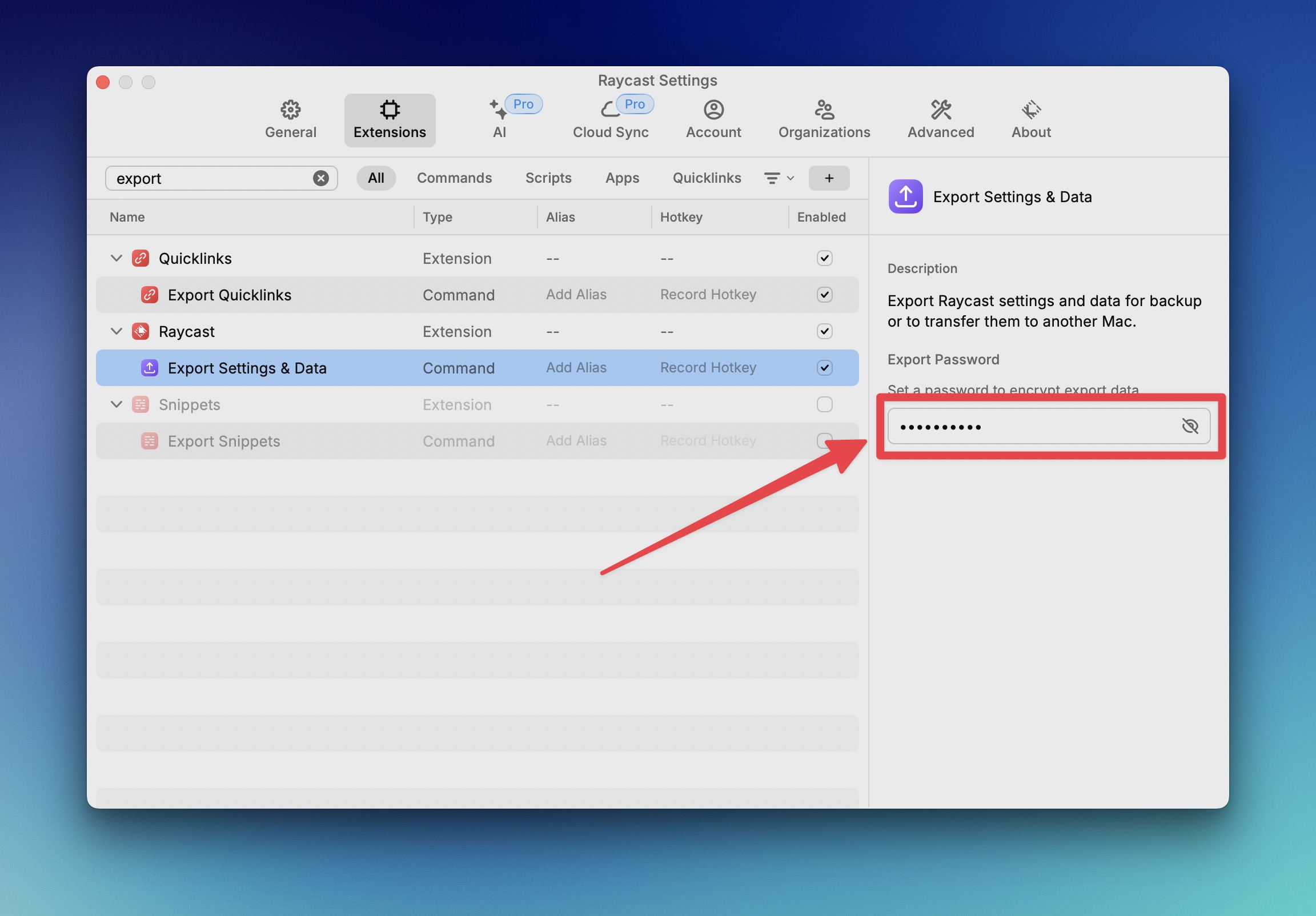
Raycast 导出设置时会自动生成一个默认密码,这个密码不能修改,只能在设置界面里查看。
字体
命令
brew install --cask font-lxgw-wenkai
Typora
命令
brew install --cask typora
open ~/Library/Application\ Support/abnerworks.Typora/themes
git clone [email protected]:huyixi/typora-theme.git ~/Library/Application\ Support/abnerworks.Typora/themes
✨ 可选增强
这部分不是基础装机必做项,包含默认应用、自动化和高风险调整。
默认应用
用途 批量修改文件类型的默认打开方式。
先获取应用的 Bundle Identifier
osascript -e 'id of app "zed"'
把 zed 改成你想查询的应用名就行。
批量设置脚本
#!/bin/bash

if ! command -v duti &> /dev/null; then
    echo "duti 未安装。请先使用 'brew install duti' 安装 duti。"
    exit 1
fi

fileAssociations=(
    # 图片文件
    "com.interversehq.qView jpg"
    "com.interversehq.qView jpeg"
    "com.interversehq.qView png"
    "com.interversehq.qView gif"
    "com.interversehq.qView tiff"
    "com.interversehq.qView bmp"
    "com.interversehq.qView heic"
    # 视频文件
    "com.colliderli.iina mov"
    "com.colliderli.iina mp4"
    "com.colliderli.iina avi"
    "com.colliderli.iina mkv"
    "com.colliderli.iina m4v"
    # 文本文件
    "dev.zed.Zed txt"
    "dev.zed.Zed xml"
    "dev.zed.Zed opml"
    "dev.zed.Zed json"
    "dev.zed.Zed html"
    "dev.zed.Zed css"
    "dev.zed.Zed js"
    "dev.zed.Zed ts"
    "dev.zed.Zed tsx"
    "dev.zed.Zed pub"
    "dev.zed.Zed yaml"
    "dev.zed.Zed csv"
    "abnerworks.Typora md"
    "com.microsoft.Excel xls"
    "com.microsoft.Excel xlsx"
    # PDF 文件
    "com.apple.iBooksX pdf"
)

errors=()

echo "正在设置默认应用程序..."
for association in "${fileAssociations[@]}"; do
    app=$(echo "$association" | awk '{print $1}')
    ext=$(echo "$association" | awk '{print $2}')
    echo "设置 .$ext -> $app"
    if ! duti -s "$app" ".$ext" all; then
        if ! duti -s "$app" "$ext" all; then
             errors+=("设置 .$ext 类型的默认应用程序为 $app 失败。")
        fi
    fi
done

if [ ${#errors[@]} -ne 0 ]; then
    echo "------------------------------------------"
    echo "以下文件类型的默认应用程序设置失败:"
    for error in "${errors[@]}"; do
        echo "$error"
    done
    exit 1
else
    echo "------------------------------------------"
    echo "默认应用程序全部设置成功。"
fi

exit 0
AirDrop 默认保存位置
用途 用文件夹操作把 AirDrop 收到的文件自动移动到指定目录。
脚本
property TARGET_FOLDER : "Macintosh HD:Users:huyixi:Desktop"

property GET_QUARANTINE_COMMAND_START : "ls -l -@ '"
property GET_QUARANTINE_COMMAND_END : "' | tr '\\n' ' ' | sed 's/.*com\\.apple\\.quarantine\\s*\\(\\d*\\)/ \\1/' | awk '{$1=$1};1'"

on adding folder items to this_folder after receiving added_items
	repeat with i from 1 to length of added_items
		set current_item to item i of added_items
		set quarantine_type to getQuarantineType(POSIX path of current_item)
		moveFile(current_item, alias TARGET_FOLDER)
	end repeat
end adding folder items to

on moveFile(move_file, destination_dir)
	tell application "Finder"
		move move_file to destination_dir with replacing
	end tell
end moveFile

on getQuarantineType(file_path)
	return do shell script GET_QUARANTINE_COMMAND_START & file_path & GET_QUARANTINE_COMMAND_END
end getQuarantineType
下载与安装策略
风险提示 这一组操作会放宽系统对下载文件和安装来源的限制,只建议在明确知道影响范围时执行。
关闭下载应用的隔离机制
defaults write com.apple.LaunchServices LSQuarantine -bool false
允许安装任何来源的应用
sudo spctl --master-disable
备注 执行完后建议注销重新登录一次。
删除系统自带输入法
风险提示 这一项需要临时关闭 SIP,只建议在你明确知道自己要保留哪些输入法时执行。
-
关闭 SIP
- 关机
- Intel 芯片的 Mac:按住
Command + R进入恢复模式 - Apple 芯片的 Mac:按住电源键进入恢复模式
- 进入恢复模式后,打开顶部菜单栏的 实用工具 -> 终端
- 执行:
csrutil disable- 确认输出成功信息后重启系统
-
修改输入法配置
- 打开终端执行:
sudo open ~/Library/Preferences/com.apple.HIToolbox.plist- 在该文件中依次点开
Root->AppleEnabledInputSources - 找到
KeyboardLayout Name为ABC的那一列,将整列item删掉 - 保存后重启系统
- 如果无法直接打开 plist,可以改用下面这组命令:
/usr/libexec/PlistBuddy -c "Print AppleEnabledInputSources" ~/Library/Preferences/com.apple.HIToolbox.plist /usr/libexec/PlistBuddy -c "Delete AppleEnabledInputSources:3" ~/Library/Preferences/com.apple.HIToolbox.plist killall cfprefsd -
重新启用 SIP
- 再次进入恢复模式,打开终端
- 执行:
csrutil enable- 重启系统
📚 参考资料
- sxyz: 我的 macOS 配置↗ :在 sxyz 的配置基础上,做了一些更适合我自己的优化
- How to change the default AirDrop destination folder on Mac↗ :改变 AirDrop 的存储位置